
Upload shorts on youtube from pc: Upload YouTube Shorts from

Upload shorts on youtube from pc - Learn to upload Shorts on YouTube from your PC with our 2026 guide. Covers file specs, YouTube Studio workflow, optimization,
If you’re still uploading every YouTube Short from your phone, you’ve probably hit the same wall most growing channels hit. The clip is ready, but the workflow is messy. You trim in one app, copy a title from Notes, paste hashtags by hand, forget to schedule, then realize later that the description or audience setting is wrong.
That setup works for a few casual uploads. It breaks fast when Shorts become a real publishing system.
Why Your Phone Is Holding Your YouTube Channel Back
A phone is fine for capture. It’s not where serious channel operations should live.
On mobile, small mistakes happen constantly. Titles get rushed. Descriptions become inconsistent. Publishing times drift. If more than one person touches the channel, brand consistency slips even faster. The result is not just inconvenience. It is a channel that looks managed one post at a time instead of run with intent.
The bigger issue is volume. YouTube Shorts receive over 70 billion daily views worldwide as of 2024, creators who prioritize Shorts upload an average of 18–22 videos per month, and desktop uploads through YouTube Studio let you select up to 15 short videos at once according to these YouTube Shorts statistics. That changes the conversation. This is no longer about whether desktop uploads are possible. It is about whether your workflow can keep up with the format.
What phone-first workflows usually get wrong
A mobile-only process tends to create the same problems:
- Inconsistent metadata: Titles, descriptions, and hashtags vary too much from post to post.
- Weak scheduling discipline: Videos go out when someone remembers, not when the channel plan says they should.
- Poor review flow: It is harder for an editor, manager, or client to approve content on a phone.
- Limited batch handling: Posting multiple Shorts in one sitting becomes tedious.
What a PC workflow fixes
On desktop, YouTube Studio feels less like an app and more like an operations console. You can prep files, review text, schedule releases, and check performance without bouncing between screens.
Tip: Use your phone for filming and thumbnail selection later if needed, but use your PC as the publishing home base.
That hybrid setup is what works in practice. Capture on mobile. Edit where you want. Publish and manage from desktop. If you want to upload shorts on youtube from pc without introducing chaos, that is the cleanest way to do it.
Preparing Your Video File for a Perfect Upload
Most Shorts upload problems start before YouTube Studio ever opens.
Creators often blame the platform when a Short fails to appear correctly, but the file itself is usually the issue. If the aspect ratio is off, the length pushes too far, or the export settings are sloppy, YouTube may treat the upload differently than you intended.
The Essential Specs
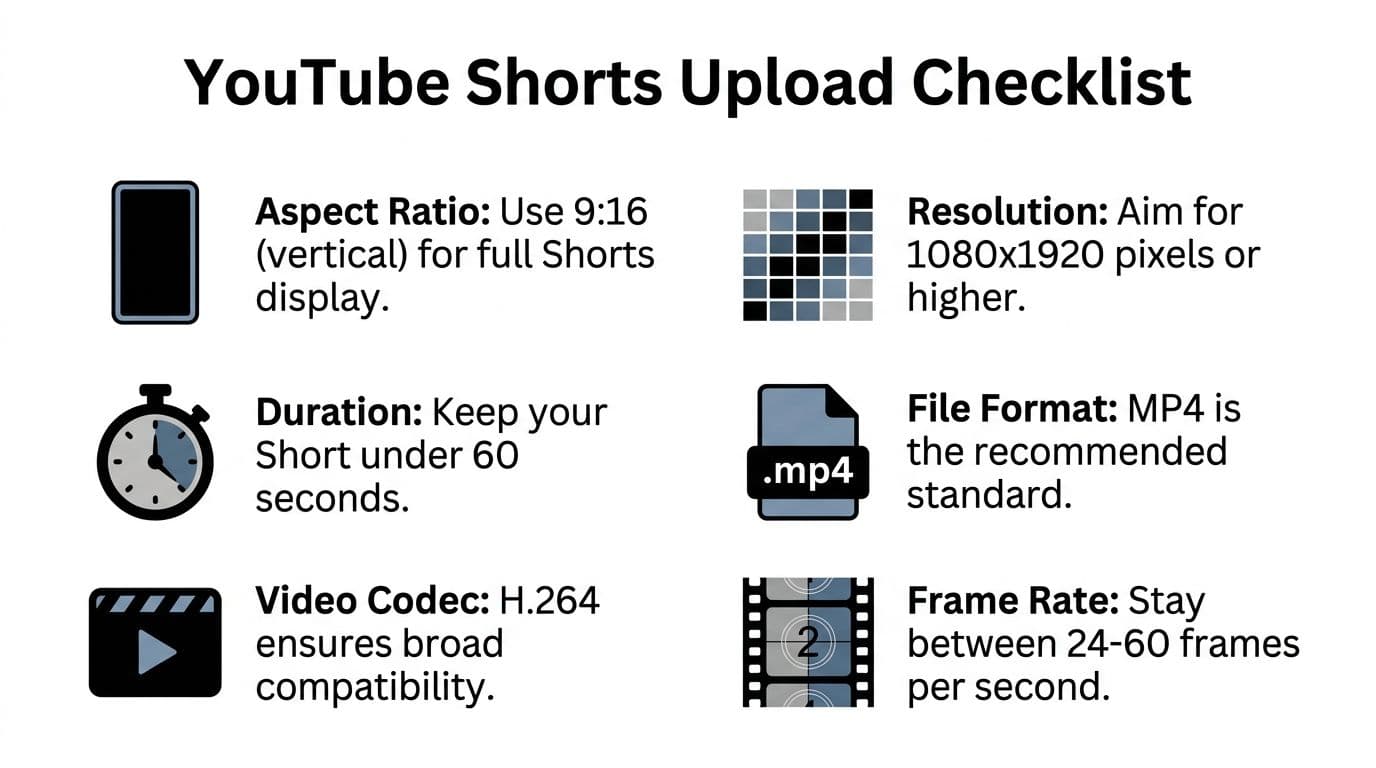
According to Uppbeat’s guide to uploading a YouTube Short, the core requirements are vertical aspect ratio 9:16, duration of 60 seconds or less, and MP4 format with H.264 codec. The same source states that an estimated 85% of initial PC upload failures for Shorts are due to non-vertical formats or exceeding the 60-second limit, and that can drop feed impressions by 70%.
That tells you where to be strict. Do not “mostly” fit the format. Fit it exactly.
Shorts spec sheet
| Attribute | Requirement | Recommendation |
|---|---|---|
| Aspect ratio | 9:16 | Keep the canvas fully vertical |
| Duration | 60 seconds or less | Leave a little buffer instead of exporting to the exact limit |
| File format | MP4 | Use MP4 for the cleanest desktop workflow |
| Video codec | H.264 | Export H.264 unless you have a strong reason not to |
| Resolution | Vertical format required | Aim for 1080x1920 |
| Audio | Standard upload-compatible audio | Export clean audio with no clipping |
What I check before every upload
I use a simple pre-flight pass before anything goes into Studio:
- Canvas first: Confirm the timeline is vertical. A horizontal clip placed inside a vertical frame can still look wrong if the editor exported the wrong sequence.
- Duration second: Keep it under the limit without trying to squeeze in an extra second.
- Export naming: Name files clearly so upload order and scheduling are obvious.
- Audio review: Listen once on speakers and once on headphones. Shorts can survive rough visuals better than rough audio.
The practical trade-off
A lot of creators spend time polishing tiny visual details and ignore the format rules that determine whether the video is even treated as a Short properly. That is backwards. Format compliance comes first. Creative polish comes second.
Key takeaway: The best script and edit cannot rescue a file that was exported in the wrong shape or length.
If you’re building ideas from scratch and want a faster path from concept to vertical-ready output, tools that generate short-form drafts can help. For example, ShortGenius text-to-video workflows fit neatly into a PC-first process because they start with a script and move toward a publishable vertical asset.
Common prep mistakes
Three mistakes show up over and over:
-
Exporting the wrong sequence
Editors often cut a vertical video inside a horizontal project by accident.
-
Using recycled long-form footage
A clip pulled from a normal YouTube video may need a full reframe, not just a crop.
-
Ignoring the opening frame
Shorts live and die on immediate visual clarity. If the first frame is cluttered or badly composed, the upload is technically correct but strategically weak.
If you fix those issues before upload, the rest of the workflow becomes much easier.
The Complete YouTube Studio Upload Workflow
Once the file is ready, the desktop process is straightforward. The value of PC upload is not that it is magical. It is that every step is easier to review, repeat, and hand off.
Start inside YouTube Studio
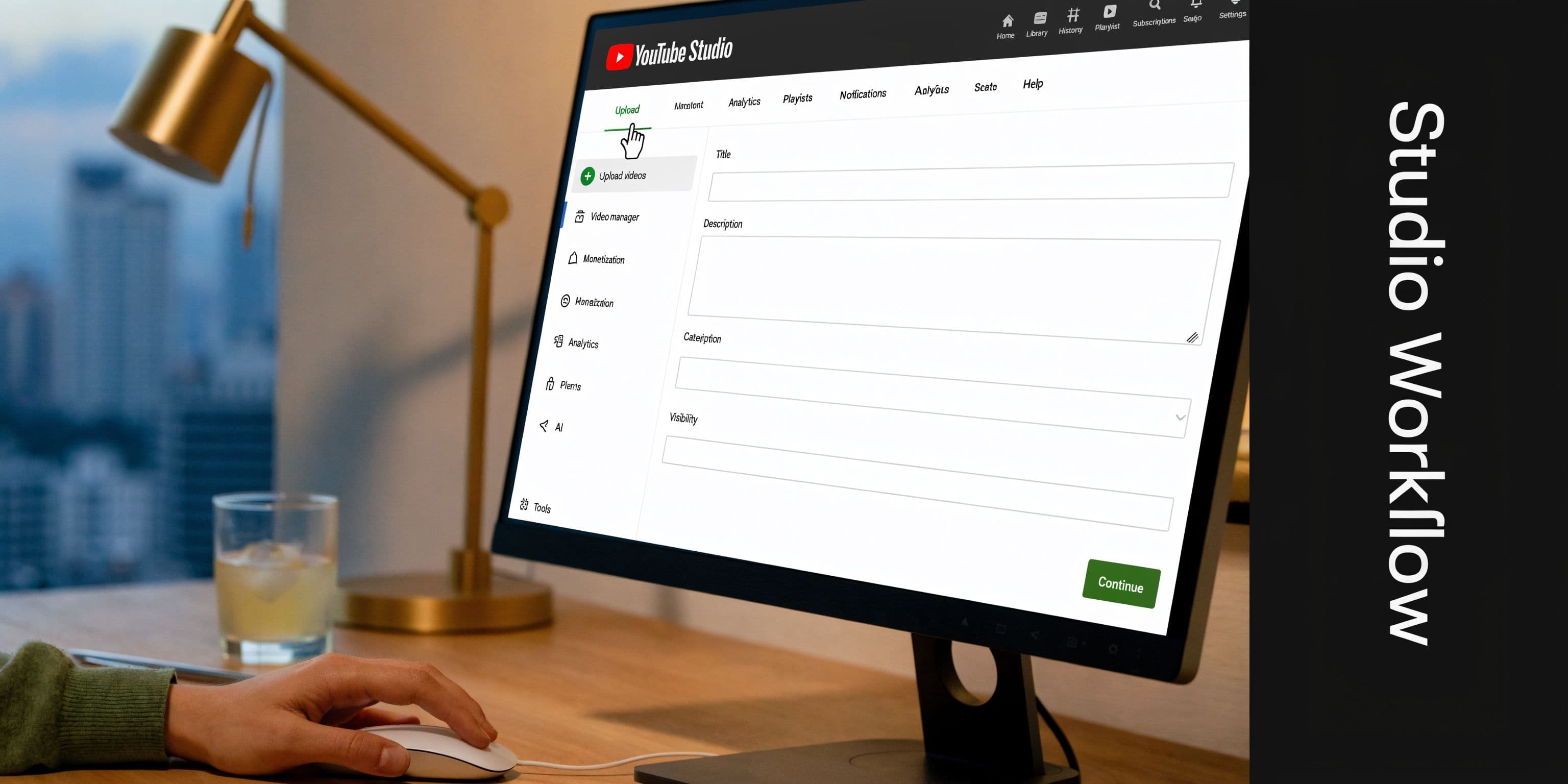
Open studio.youtube.com and log into the correct channel. In the top-right area, click Create, then Upload videos.
From there, either drag your file into the upload window or browse to it manually. If you prepared the file correctly, YouTube will process it as a Short.
Fill out the details with intention
The upload dialog is where a lot of creators slow themselves down. They treat every field like a fresh decision. That creates inconsistency.
A better approach is to keep a metadata template in a document on your PC. Use it as a starting point for every Short.
Title
Keep the title clear and direct. Front-load the main idea so the topic is obvious even in limited display areas.
Good titles usually do one of three things:
- State a result
- Create curiosity
- Name the exact topic fast
Avoid stuffing titles with extra words. A Short title should read like a sharp label, not a paragraph.
Description
Descriptions matter more than many Shorts creators assume. Add context, relevant links if appropriate, and include #Shorts. On desktop, this is easier to do consistently because you can paste from a controlled template instead of typing on a phone keyboard.
Audience and visibility
Set the audience correctly every time. If a team manages the channel, this should be part of a checklist, not memory.
Then choose visibility:
- Private for internal review
- Unlisted when you want a final check before release
- Public for immediate posting
- Schedule when the video should go live later
Scheduling is where desktop starts to pull ahead hard. When I train new team members, I tell them to stop thinking in single uploads and start thinking in release queues. Your real asset is not the one Short you are posting now. It is the next batch already lined up.
Tip: Build one folder per publishing week. Keep final exports, caption files, title drafts, and posting notes together.
Review before publish
Before you hit publish or schedule, scan the upload one more time:
- Does the title match the actual hook?
- Does the description use the right template?
- Did you choose the correct audience setting?
- Is the release date and time right for this channel?
That sounds basic, but most preventable mistakes happen here.
A visual walkthrough can help if you are onboarding someone new to the process:
What works well on PC
Desktop upload is especially strong for team workflows.
One person can prep exports. Another can handle metadata. A manager can review drafts before they are scheduled. That division of labor is clumsy on mobile and natural on PC.
What does not work as well
There is one real limitation you should expect. Some post-upload visual tweaks are still easier, or only possible, through mobile. That means the cleanest system is usually a PC-first workflow with occasional phone follow-up, not a pure desktop-only ideology.
The mistake is assuming that because Shorts are watched on mobile, they should also be managed there. They should be managed where the workflow is fastest and easiest to control.
Optimizing Your Shorts for Maximum Reach
Uploading gets the video live. Optimization is what turns a pile of uploads into a content system.
The main advantage of desktop here is visibility into performance. You are not guessing where views came from. You can inspect patterns and make better editorial decisions for the next batch.
Watch traffic source patterns
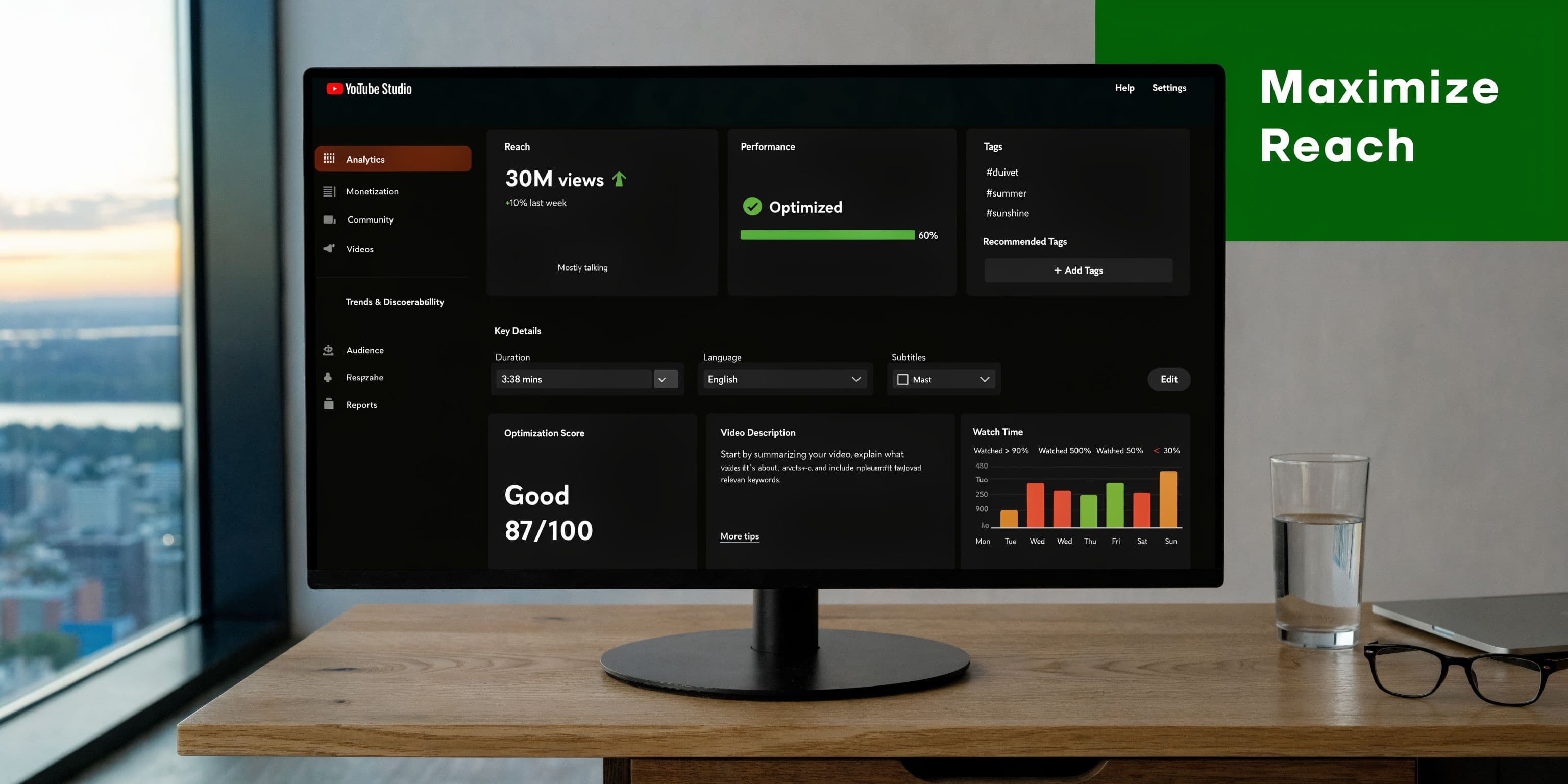
A key reason to upload shorts on youtube from pc is access to deeper analytics. This YouTube Studio-focused source notes that desktop analytics reveal traffic from places like the Shorts shelf, suggested videos, and search, and that analyzing those sources matters because over 70% of YouTube watch time happens on mobile.
That changes how you evaluate a Short.
If a video gets traction from search, your topic framing may be stronger than you thought. If it mostly moves through the Shorts shelf, the hook and opening frames are likely doing the heavy lifting. If suggested videos show up, your channel packaging and topic clustering may be helping.
Use analytics to shape future edits
Look at your Shorts as a batch, not just one by one.
Ask questions like:
- Which topics keep earning views after the first push?
- Which opening visual style appears repeatedly in better-performing Shorts?
- Which series format earns enough traction to deserve a follow-up?
That is where desktop review matters. You can compare posts, sort patterns, and build a repeatable format instead of chasing random one-off uploads.
Tip: Keep a simple spreadsheet with each Short’s topic, hook type, and traffic source notes. After a few weeks, patterns usually become obvious.
Handle the thumbnail limitation realistically
On PC, thumbnail control for Shorts is limited compared with normal videos. Treat that as a creative constraint, not a reason to give up on packaging.
If you cannot rely on a desktop thumbnail workflow, then the first seconds of the actual video need to do more work. Strong text on screen, clear subject framing, and immediate motion matter.
For teams running paid creative and organic short-form side by side, tools like AI ad generator workflows can also help standardize hooks and visual structures across multiple assets. The useful part is not automation by itself. It is keeping repeated creative patterns easier to test.
Simple post-upload moves that help
- Group related Shorts: Organize connected content so viewers can move through a topic cluster.
- Link intelligently: If a Short supports a broader idea, connect it to a relevant longer video when that makes sense.
- Review weak performers quickly: Do not obsess over every low-view post, but do look for repeated packaging mistakes.
Optimization is mostly subtraction. Keep what repeatedly works. Cut what repeatedly wastes a slot.
Scaling Production Beyond Manual Uploads
Manual upload works until the channel gets busy.
At that point, the bottleneck is not ideation. It is the repetitive admin around every Short. Opening each draft. Pasting metadata again. Checking the same settings again. Scheduling each upload one at a time. That drag compounds when a creator, brand, or agency runs multiple content streams.
A lot of tutorials skip this problem because they are written for one-off posting. That is not how most serious teams operate.
Where the workflow starts to break
According to this workflow-focused source, up to 40% of forum threads on PC uploads complain about time lost to repetitive metadata entry, and 62% of creators are seeking integrated tools. That lines up with what teams run into in practice. The upload itself is not hard. The repetition is what eats the day.
The pain points are predictable:
- Metadata repetition: The same channel boilerplate gets entered over and over.
- Scheduling friction: You can queue content, but managing many assets still takes manual attention.
- Brand inconsistency: Different team members write titles and descriptions differently.
- Channel sprawl: Multi-channel publishing becomes hard to coordinate from disconnected tools.
What a scalable setup looks like
A scalable short-form workflow usually combines these pieces:
- A creation layer for scripting, visuals, captions, and voice.
- A review layer for approvals and edits.
- A publishing layer for scheduling and cross-platform distribution.
- A library layer so assets and brand elements stay organized.
At this point, software starts to matter more than raw hustle.
Some teams stitch this together with separate tools. Others prefer one platform that covers more of the chain. ShortGenius is one example in that second category. It combines scriptwriting, asset generation, editing, brand kits, and scheduling, which fits teams that want to move from one Short at a time to a repeatable content pipeline. If your workflow includes turning still assets into clips, image-to-video tools fit naturally into that kind of system.
Key takeaway: The moment upload admin takes more energy than content decisions, you need a system, not more discipline.
What still should stay manual
Not everything should be automated.
Topic choice still needs judgment. Hook quality still needs human review. Final packaging still benefits from someone asking, “Would I stop scrolling for this?” Automation helps most with repetition, not taste.
That is the useful split. Let tools reduce the production drag. Keep editorial control with the creator or team lead.
Troubleshooting Common PC Upload Errors
Even when the workflow is solid, a few errors come up repeatedly. Most are fixable without much drama.
The video did not register as a Short
This usually comes back to the file itself. Recheck the aspect ratio and the total duration.
If the export is not vertical, or the runtime pushed beyond the Short threshold, YouTube may treat it differently than expected. Go back to the edit, correct the sequence settings, and export again.
The upload is stuck in processing
When processing stalls, start with the boring checks first. Confirm the original file plays correctly on your computer. If it does, try re-uploading the same export once before changing anything else.
If the issue repeats, export a fresh MP4 from the source project. Corrupted exports and odd codec behavior can cause processing issues even when the video appears fine locally.
The video looks soft or low-quality
This often happens right after publishing while higher-quality versions are still processing. Wait a bit, then refresh and check again.
If it still looks weak later, inspect your export settings. Poor scaling, low-bitrate output, and timeline mismatches can all create muddy-looking Shorts. The platform cannot restore detail that never made it into the file.
The text or framing looks wrong on mobile
Desktop previews can hide composition problems. Always think about how the Short will feel full-screen on a phone.
Check that captions are not too low, key visuals are centered, and nothing important sits near the edge. Shorts are mobile-native in presentation, even when the upload happens on PC.
Tip: Before publishing a batch, test one file on your own phone in full-screen. It catches framing mistakes faster than a desktop preview.
Frequently Asked Questions About PC Short Uploads
Can I edit a Short after publishing from my PC
Yes. You can go back into YouTube Studio and update details like the title, description, and visibility settings.
What happens if my video goes slightly over the Short limit
If it does not meet the Short requirements, YouTube may not classify it as a Short. When that happens, discoverability and placement can change.
Do I need to upload from my phone to make it count as a Short
No. A properly formatted vertical video can be uploaded from desktop through YouTube Studio.
Can I schedule Shorts from a PC
Yes. Scheduling is one of the strongest reasons to use desktop in the first place.
What should I do about music issues
Use audio you have the right to use, then check the video status after upload. If there is a rights issue, review the claim details inside Studio and replace or re-edit the audio if needed.
If your team is ready to move beyond one-off uploads, ShortGenius (AI Video / AI Ad Generator) is built for that kind of workflow. It lets creators and teams generate videos, organize series, edit fast, and schedule content across channels from one system, which makes PC-based Shorts publishing easier to standardize.